Reset your password
Password recovery is how you get back in when you cannot sign in: you ask for a six-character code by email, enter it together with a new password, and sign in again with that password. It is the only way to recover an account whose password you have lost.
Public — no role, package or existing event needed.
Both recovery screens are open to anyone. You do not need to be signed in, to hold a role inside an event, or to have a company.
Where the screens live
The recovery has two pages:
/en/auth/forgot-password— the Forgot Password? page, where you ask for the code./en/auth/reset-password— the Set a new password form, where you enter the code and the new password.
You normally reach the first one from Forgot password? on the sign-in form, above the Login button. The second one is reachable from the confirmation screen, through the Enter your reset code link — see Sign in.
Both pages open with a Back button above the heading, which returns you to the screen you came from.
Step 1 — Ask for the code
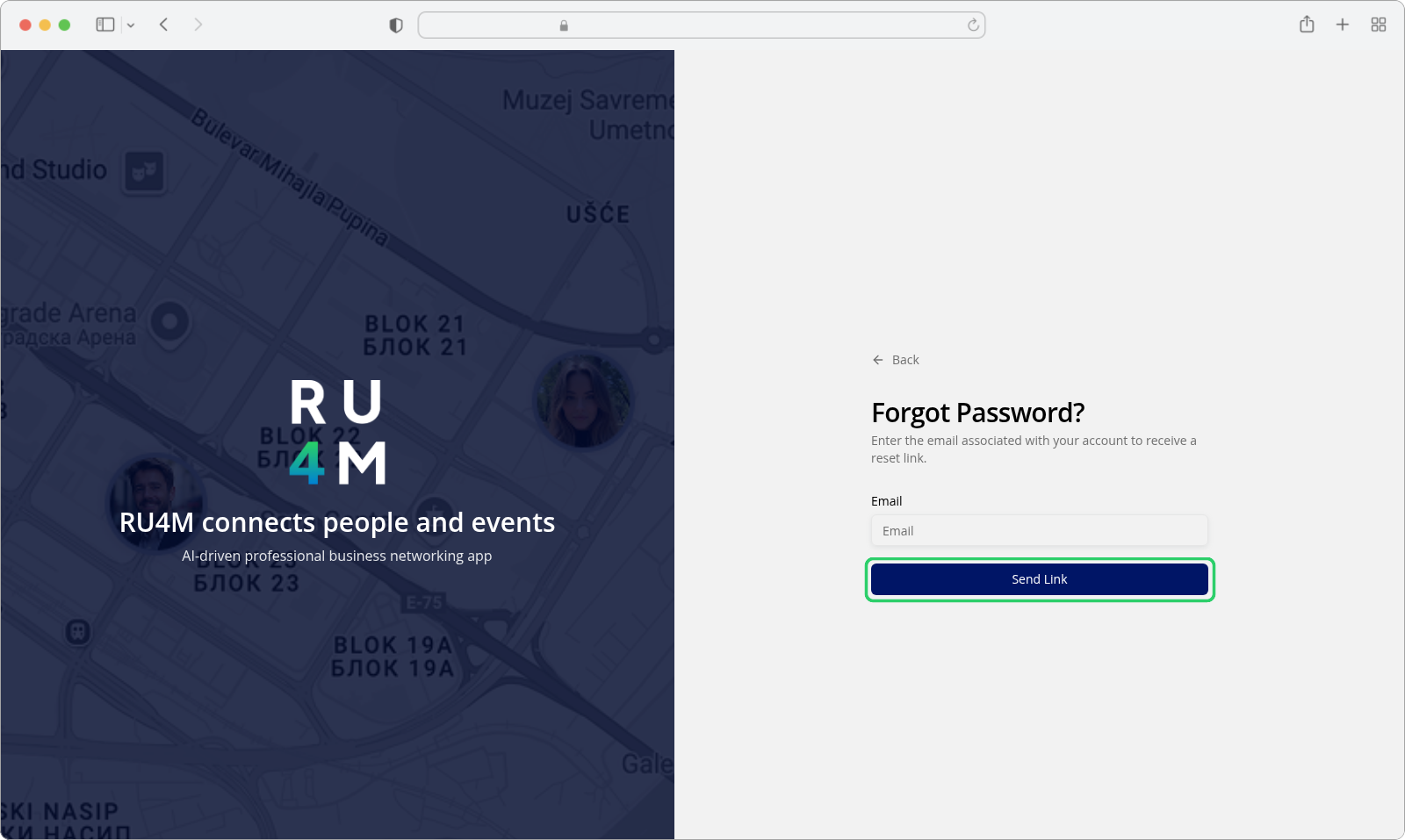
- Email — the address your account was created with. The field is marked invalid until it holds a complete address.
- Send Link — the wide button under the field. While the request is on its way it reads Sending... and cannot be pressed again.
Step 2 — Read the confirmation, then follow the link
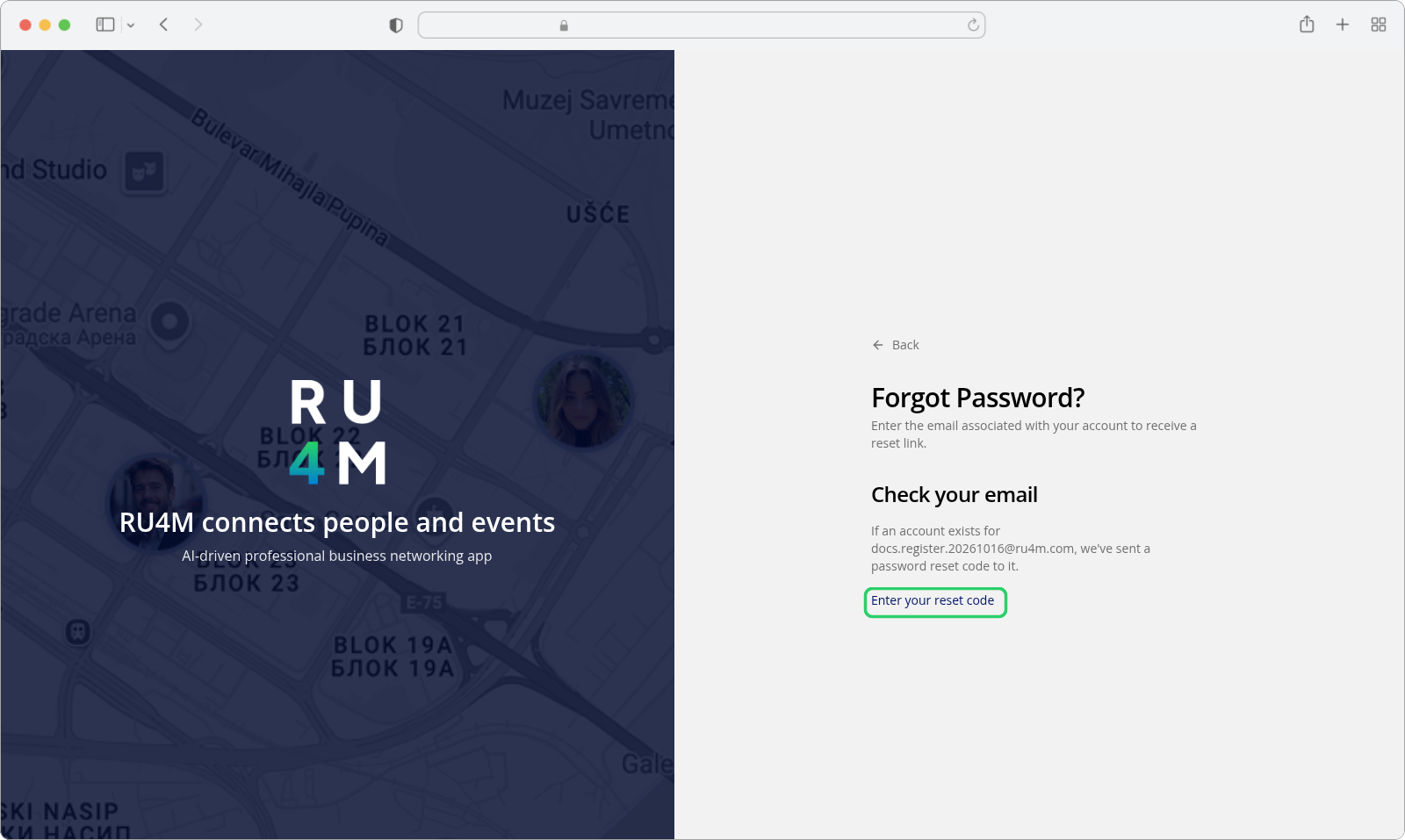
The page replaces the form with a Check your email heading and one line:
If an account exists for {email}, we've sent a password reset code to it.
Enter your reset code below it opens the reset form.
The same message appears whether or not the address has an account
You get this confirmation for an address that is registered and for one that is not. That is deliberate: telling the two apart would let anybody check whether a given email address has an account here. If no message arrives, check the spam folder first, then ask for the code again.
Step 3 — Set the new password
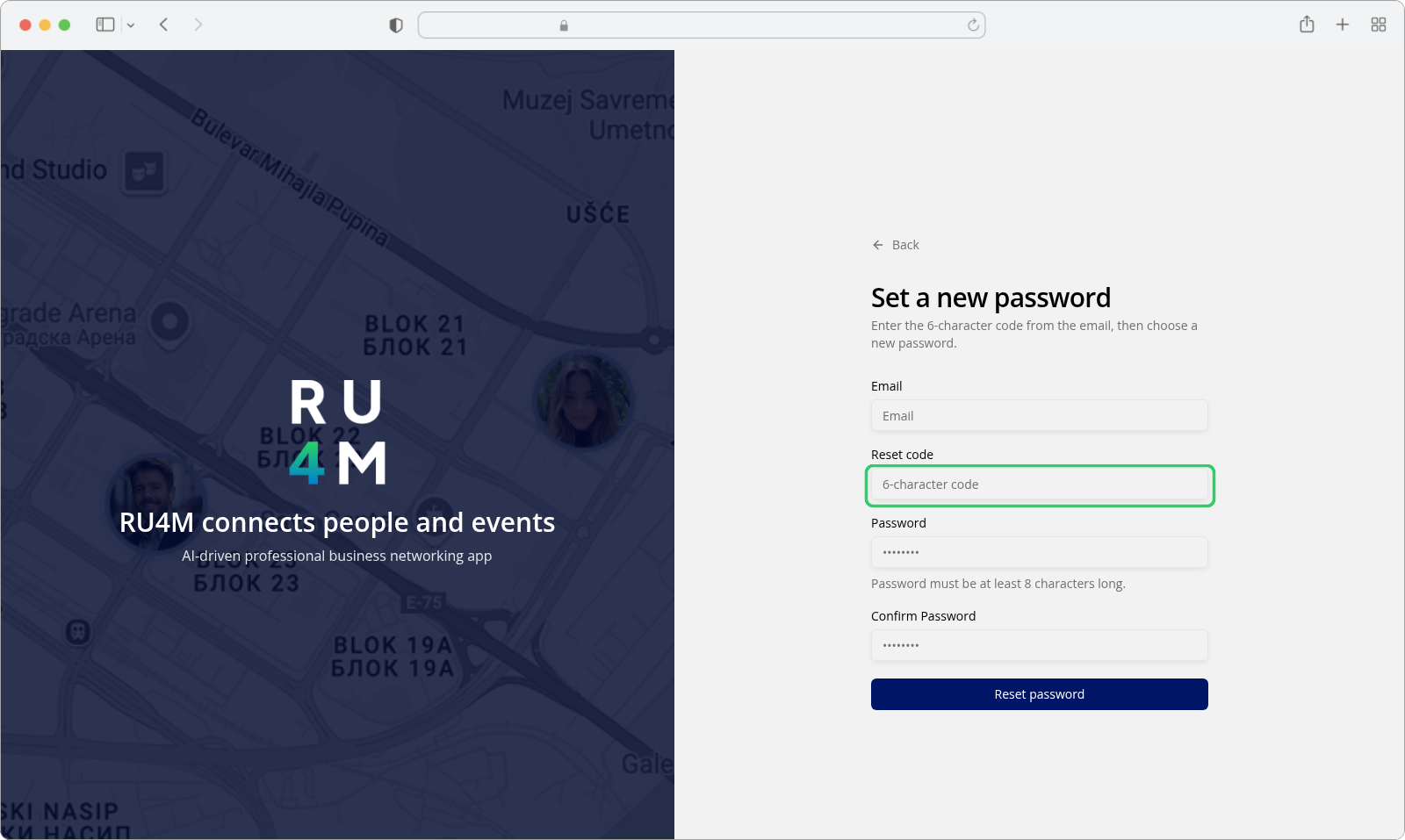
The reset form has four fields. The email is not carried over from the previous screen — type it again, because the code is matched against it.
- Email — the same address again.
- Reset code — the six characters from the email. They are the letters
AtoFand the digits0to9; you may type them in either case, and Backoffice converts what you typed before sending it. The field accepts six characters and no more. - Password — your new password. The line under the field states Password must be at least 8 characters long.
- Confirm Password — the same password again, so a typo is caught here rather than at the next sign-in.
- Reset password — the wide button under the fields. While the request is on its way it reads Loading....
The password policy for recovery is stricter than the one for registration
A new password set here must have at least 8 characters, and must contain an uppercase letter, a lowercase letter, a digit, a special character, and no spaces. That is the stricter policy — creating an account asks only for 8 to 64 characters with a matching confirmation. If the policy is not met, the field shows Password must contain an uppercase letter, a number and a special character.
Step 4 — Sign in with the new password
A successful reset shows the confirmation Password changed successfully and opens the sign-in page, where the new password works from that moment on. The old password is gone.
Ask for a new code if you need a second attempt
Each request replaces the previous one: the older code stops working the moment a newer one is issued. Work with the most recent email. The server also expires a code after a short time, so an old code that has not been replaced is rejected too — ask for a new one instead of guessing.
If something goes wrong
The first two messages below appear beneath the Email field, where the rest of that field's validation appears; only a failure of the request itself arrives as a toast in the corner of the screen. Either way the form stays filled in, so you can correct the address and press Send Link again.
| Message | What it means | What to do |
|---|---|---|
| This field is required | The Email field was left empty. | Type the address. |
| Please enter a valid email address | The address is incomplete or is not an address at all. | Retype it, including the @ and the domain. |
| Failed to send the reset email. Please try again. | The request itself failed. The address is not the problem. | Wait a moment and press Send Link again. |
Messages on the reset form appear under the field they belong to, except the failure toast.
| Message | Where it appears | What it means | What to do |
|---|---|---|---|
| This field is required | under the field | A field was left empty. | Fill in the email, the code and both password fields. |
| Please enter a valid email address | under Email | The text in the field is not a well-formed address. Any well-formed address passes this check — the code is matched to the address later, by the request itself. | Retype it, including the @ and the domain. |
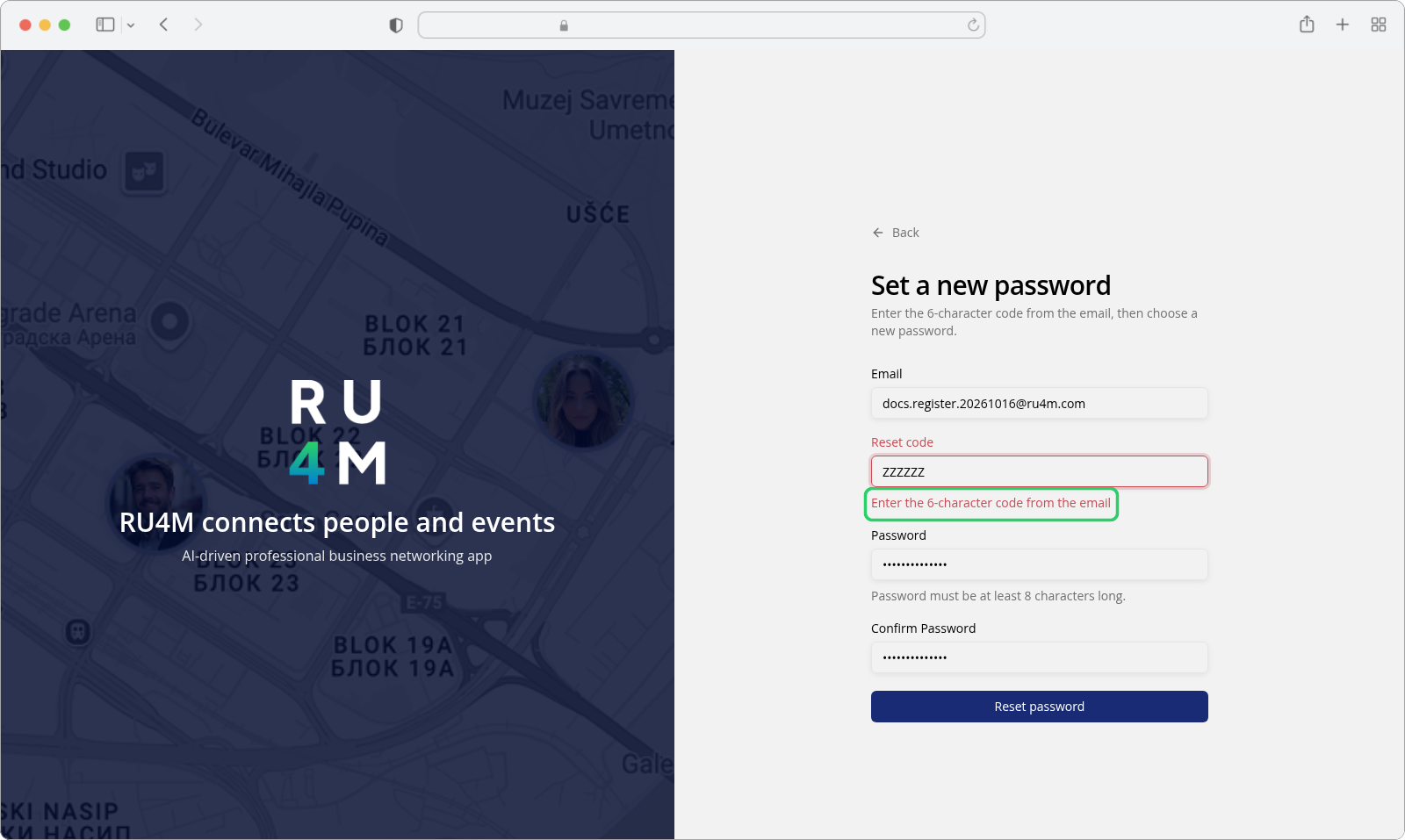
| Enter the 6-character code from the email | under Reset code | The code is not six characters from A–F and 0–9. |
Copy the code from the newest email. |
| Password must be at least 8 characters long. | under Password | The password is shorter than the minimum. | Lengthen it. |
| Password must contain an uppercase letter, a number and a special character | under Password | The password breaks the recovery policy. | Add the missing character types. |
| Passwords do not match | under Confirm Password | The two entries differ. | Retype the confirmation. |
| Failed to reset the password. Check the code and try again. | toast | The code was rejected — wrong, already replaced by a newer request, expired, or issued for a different address. | Ask for a new code and use the newest email. |